Table of Contents
- What Can You Do with Genspark?
- The Free Plan Gives You 100 Credits per Day
- Credit-Saving Tip #1: Use AI Chat First
- Credit-Saving Tip #2: Understand How Super Chat Works
- Credit-Saving Tip #3: Stop Super Chat from Creating Unnecessary Reports
- Credit-Saving Tip #4: Do Not Generate Slides Immediately
- Credit-Saving Tip #5: Stop Early If the Result Is Clearly Going in the Wrong Direction
- Credit-Saving Tip #6: Do Not Regenerate Everything for a Small Edit
- You Can Do Quite a Lot with Slides on the Free Plan
- On the Free Plan, Start with the Task You Do Most Often
- The Paid Plan Changes How You Think About Credits
- Genspark Is Useful, but You Do Not Need to Use It for Everything
- Summary: The Biggest Credit-Saving Trick Is Knowing When to Use AI Chat and When to Use Super Chat
Genspark is an AI service that can do far more than simple chat. You can use it for research, slide creation, image generation, video generation, websites, and even simple app development.
I've been using Genspark for quite a while, and I still think its presentation features are especially useful. Another major advantage is that most of the work can be done in a browser, so I can use it not only on a PC but also from my smartphone.
If you are using the free plan, however, one thing you quickly start thinking about is credits.
As of September 2026, the free Genspark plan gives you 100 credits every day. You can start without registering a credit card, so the free plan is more than enough to see whether Genspark fits the way you work.
But if you use it without thinking about how credits are consumed, 100 credits can disappear surprisingly quickly. When I first started using Genspark, I often wasted credits by sending simple questions to Super Chat or letting unnecessary reports finish generating even after I already had the answer I needed.
In this article, I'll explain the basic way I use Genspark and the credit-saving techniques that have worked best for me.
What Can You Do with Genspark?
At first glance, Genspark may look like another AI chat service similar to ChatGPT. You can certainly ask it normal questions, but one of Genspark's strengths is that it can continue beyond the conversation itself.
For example, you can ask it to research a topic, summarize the results, and then turn that information into a presentation. It includes tools for slides, documents, images, video, research, coding, and more.
Personally, the feature I value most is slide creation. If you ask it to create a presentation of around ten slides on a topic, it can generate not only the text but also the visual layout and design. A lot of the work can also be done entirely in the browser. I sometimes use Genspark from my phone while I'm on the train.
If you want a broader overview of everything Genspark can do, I have another article that covers its main features in more detail: "What Can You Do with Genspark? Complete Feature Guide for 2026".
The Free Plan Gives You 100 Credits per Day
The free Genspark plan currently gives you 100 credits automatically every day. Those credits are used for AI features and generation tasks. Unused credits do not keep accumulating indefinitely, so there is little benefit in trying to save them for weeks.
One important thing to understand is that not every task consumes credits in the same way. A simple writing question and a task that involves web research, report generation, and image creation obviously require very different amounts of computation. Genspark also explains that credit usage depends on factors such as the model being used, text length, task complexity, image resolution, video duration, and the number of generations.
Important: So in my experience, the best way to use the free plan is not simply "Always choose the cheapest model." It is more useful to think: "Do not use a heavy tool for a simple task."
Credit-Saving Tip #1: Use AI Chat First
If I were using the free plan, this would be my most important credit-saving rule.
Genspark has AI Chat for normal conversations, as well as Super Chat and Super Agent-style features that can decide which tools to use and perform multiple steps automatically. You do not need to send every small question to Super Chat. If you want help writing something, generating ideas, planning a presentation, or creating a prompt, AI Chat is usually the better place to start.
For example, if you want to make a presentation, instead of immediately asking:
"Create a 10-slide presentation about this topic."
I would first ask AI Chat:
"I want to make a 10-slide presentation about this topic for beginners. What structure would work well?"
Then I might get an outline such as:
- Slide 1: Title
- Slide 2: What is it?
- Slide 3: Common problems
- Slide 4: Examples
Once I am happy with the structure, I can pass that outline to AI Slides. This reduces the chance of generating an entire presentation only to realize that the structure was wrong and having to start again.
Genspark itself now recommends a similar approach for saving credits: first organize your ideas and instructions in AI Chat, then pass the finalized prompt to Super Agent or AI Slides. So the workflow I had already been using is now also one of the approaches Genspark officially recommends.
Genspark AI Chat lets you switch between multiple AI models. The available models change fairly often, so I do not think it is useful to permanently list exact model names in an article like this. Genspark itself also recommends checking the current interface because model availability and credit costs can change. At the moment, Genspark includes models from families such as GPT, Claude, and Gemini.
You will usually see something like 5x or another multiplier next to the model name. In general, the larger the number, the more capable the model is intended to be. If you are choosing between GPT, Claude, and Gemini, I would start by trying one of the higher-rated models. There are many other models available as well, but beginners do not need to test everything immediately. For simple questions, a lighter model is often enough. For final writing or more difficult analysis, it can make sense to switch to a stronger model. That can also help reduce unnecessary credit usage.
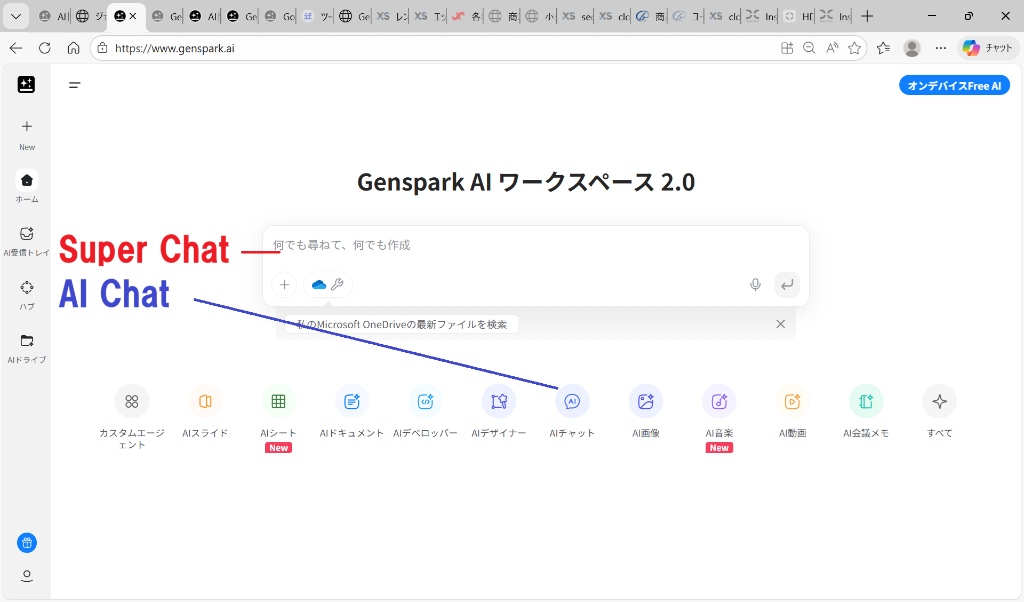
Genspark offers different ways to interact with AI. Using AI Chat for simple tasks is one of the easiest ways to save credits.
Credit-Saving Tip #2: Understand How Super Chat Works
Super Chat is extremely useful. You do not have to manually tell Genspark, "Search the web first, then use this tool, then summarize the result." Genspark can decide which steps are necessary and perform them automatically.
That convenience, however, also means that a simple request can sometimes turn into a much larger task than you expected. For example, you might ask:
"Tell me about this topic."
and Genspark may begin searching the web, collecting information, and creating a detailed report. If you really need a thorough investigation, that is useful. But if all you wanted was a quick overview, the extra work may be unnecessary. So my general rule is:
- Simple question → AI Chat
- Research or multi-step task → Super Chat / Super Agent
If you are trying to make 100 free credits last, understanding this difference makes a noticeable difference.
Credit-Saving Tip #3: Stop Super Chat from Creating Unnecessary Reports
This is one of the most concrete problems I have run into while using Genspark. Sometimes I ask Super Chat to do something, and the answer I actually need is already visible in the chat. But after that, Genspark continues working and starts creating a separate report to save into AI Drive.
Most of the time, I do not need that report. The extra report can:
Warning: The extra report can consume additional credits, fill AI Drive with files I do not need, make the task take longer, and sometimes cause the process to hang. I have had many situations where I thought: "I already have the answer. You really do not need to generate anything else."
So when I use Super Chat, I sometimes include an instruction like this from the beginning:
Important: To save time and credits, do not create a report. Give me a concise answer directly in the chat.
That alone can reduce unnecessary report generation. In an older version of this article, I even added an instruction telling Genspark to repeat the "Important" instruction at certain points so it would not forget it. Genspark can lose track of earlier instructions during a long task, so I still occasionally use that kind of reminder when necessary. It is a simple technique, but for free-plan users it can save a meaningful amount of credits.
Credit-Saving Tip #4: Do Not Generate Slides Immediately
If you are trying Genspark, I strongly recommend testing AI Slides at least once. Slide creation is one of the main reasons I continue using Genspark.
But if you only have 100 free credits, I would not immediately start generating a full deck. For example, if you simply say:
"Create a 10-slide presentation about generative AI."
Genspark will decide much of the content itself. That is convenient, but after the presentation is finished you may realize:
- "This is aimed at the wrong audience."
- "I do not need this section."
- "I wanted something much more beginner-friendly."
Then you have to generate the presentation again. That second generation means more credit usage. As I explained earlier, it is much more efficient to plan the structure in AI Chat first. Once the outline is finalized, pass it to AI Slides and aim to get something close to the final version in one generation.
Genspark's own AI Slides documentation also recommends planning the content and individual slides in AI Chat before moving to slide generation as a way to save credits. I think this is one of the best habits you can adopt.
Credit-Saving Tip #5: Stop Early If the Result Is Clearly Going in the Wrong Direction
This is another important habit. When using AI, there are times when you can tell fairly early that the result is wrong.
The presentation is going in the wrong direction. The image looks nothing like what you wanted. The research is focusing on the wrong topic. When that happens, I do not wait until the process finishes.
It is tempting to think, "Maybe it will suddenly get better near the end." But when the direction is wrong from the beginning, the final result is usually wrong too. Genspark also recommends stopping generation early if you notice a problem rather than letting an unnecessary task continue to consume credits. Stop it, adjust the prompt, and try again. That usually saves both time and credits.
Credit-Saving Tip #6: Do Not Regenerate Everything for a Small Edit
This is another technique Genspark now recommends. After creating a presentation, you may only want to change something small:
"Change this word." "Use a different color." "Move this title slightly."
You do not need to regenerate the entire presentation with AI for changes like these. AI Slides includes manual editing features such as Advanced Edit. According to Genspark, manual edits like these do not consume AI generation credits, so it is more efficient to make small adjustments yourself.
Tip: This sounds obvious because it is exactly what you would do in PowerPoint. But once you start working with AI, it is surprisingly easy to ask the AI to fix every tiny detail. Sometimes editing it yourself is both faster and cheaper.
You Can Do Quite a Lot with Slides on the Free Plan
Genspark's slide creation is worth trying even on the free plan. You can enter your content and have Genspark build a presentation that includes text, layout, and images.
And you do not necessarily need to download a PowerPoint file to use the presentation. You can display it directly in the browser, so during an online meeting you can simply share your screen. If you only need someone else to view the presentation, you can also share a presentation URL.
How to Share a Presentation URL
After generating your slides, open the presentation view from View and Export. You can then share the URL that appears there. The other person can view the presentation through that link. You can also switch to full-screen mode and present directly from the browser.
If your goal is simply to show a presentation, you may not need a PowerPoint file at all. On the other hand, if you need to deliver a .pptx file to a client, or continue editing the presentation in Microsoft PowerPoint, then it makes sense to consider one of the paid plans that supports that workflow. My recommendation is to first create a presentation on the free plan and decide whether Genspark is actually useful for your work.
On the Free Plan, Start with the Task You Do Most Often
Genspark has almost too many features. You do not need to try all of them at once.
If you frequently create PowerPoint presentations, try AI Slides first. If your job involves a lot of research, try the research features. If you write frequently, start with AI Chat. If you create a lot of visual content, try image generation.
If just one feature turns a task that normally takes 30 minutes into something you can finish in 5 minutes, that alone may be enough reason to keep using it. On the other hand, you may decide, "ChatGPT or Claude is already enough for this." That is also fine.
Different AI tools are good at different things. I do not use Genspark for everything either. I often use Claude Code for development, and I use ChatGPT for writing and image generation. But when I want to create presentations or perform several kinds of work in one browser-based environment, I still often use Genspark.
The Paid Plan Changes How You Think About Credits
I currently use a paid Genspark plan. The obvious difference is the larger credit allowance, but there is another important change. At the moment, Plus and Pro include core AI Chat and AI Image usage without credit consumption, and Genspark says this benefit will continue at least through December 31, 2026.
That means paid users do not have to think about AI Chat credits in the same way free users do. Slides, video generation, and more complex agent tasks can still consume credits, however. So even on the paid plan, the same basic idea remains useful: think with AI Chat first, then use heavier generation tools only when necessary.
I do not think you need to subscribe immediately just because you are interested in Genspark. Use the 100 free daily credits first. Try one real task that you already do for work. If Genspark makes that task noticeably easier, then consider upgrading.
Genspark Is Useful, but You Do Not Need to Use It for Everything
I have been using Genspark for much longer now than when I first wrote this article. That means I have also seen more of its weaknesses.
Genspark adds new features extremely quickly. That is exciting, but it also means some new features are not always completely stable. Sometimes a task freezes. Sometimes a feature behaves differently than it did before. And if you use Super Agent for something very simple, it can actually take longer than just using another AI tool.
So my current approach is: use Genspark aggressively for the tasks it is good at, but do not force every task into Genspark if another AI is faster. If you are just starting, you do not need to make Genspark the center of your entire workflow.
Summary: The Biggest Credit-Saving Trick Is Knowing When to Use AI Chat and When to Use Super Chat
There are several ways to make 100 free Genspark credits last longer. But the most important thing for me is still: do not send a simple AI Chat task to a heavier tool.
- Use AI Chat for simple questions and planning
- Use Super Chat when you actually need research or multiple steps
- Plan your slides in AI Chat before generating them
- Stop unnecessary report creation
- Stop generation early if it is clearly going in the wrong direction
- Do not regenerate an entire project for a tiny edit
These habits can make a big difference in how far your 100 daily credits go.
Genspark has many features, and it can feel a little overwhelming at first. You do not need to learn everything. Start with the free plan and try one task that you already spend a lot of time on. If you often create presentations, make one slide deck. If you write, ask AI Chat for help. If you do research, give it one topic to investigate.
If you find yourself thinking, "This is actually useful," then gradually expand the way you use it.